
Brand assets
Logos and button artwork for the Ozow payment methods, and the rules for using them.
On this page6 sections
Ready-made artwork for your own checkout: a logo and a button for each of the bank API payment methods, and a "Pay via Ozow" row for a checkout that offers Ozow alongside other providers.
The full pack also holds the Ozow logo, the brand guidelines and the payment flow diagrams.
Download the full marketing pack
When you need these
You need the artwork if you want to:
- Build standalone payment buttons: your own "Pay with Capitec" or "Pay with card" buttons that send customers straight to that method
- Show which payment methods you accept: on your homepage, product pages, footer or checkout, so customers know how they'll be able to pay before they get there
Bank API button artwork
Absa PayAbsa Pay Absa's own payment method, which the customer authorises in their Absa banking app. It gets its own button at checkout rather than sitting inside the bank list, and it requires Customer Identity Verification.Absa, Capitec PayCapitec Pay Capitec's own payment method. The payer gives a cellphone, account or ID number rather than card details, and approves the payment in the Capitec app, so no card number and no banking login is ever entered at checkout. It gets its own button rather than sitting inside the bank list, and it requires Customer Identity Verification.Capitec and Nedbank Direct EFTNedbank Direct EFT Nedbank's own payment method. Like the other bank APIs it gets its own button at checkout rather than sitting inside the bank list, and it requires Customer Identity Verification.Nedbank come with finished artwork, so you can put a button behind one of them without drawing anything yourself. Each comes as the payment method logo on its own, a full-width row, and a compact button.
| Payment method | Logo | Full-width row | Compact button |
|---|---|---|---|
| Absa Pay | SVG, PNG 380x160 | PNG, 1324x128 | PNG, 348x192 |
| Capitec Pay | SVG, PNG 1054x496 | PNG, 1324x128 | PNG, 348x212 |
| Nedbank Direct EFT | PNG, 44x43 | PNG, 1324x128 | PNG, 348x198 |



Take the SVG where there is one. It stays sharp at any size, which the rows and buttons do not: those are supplied as raster at twice their intended size, so a 1324x128 row is meant to sit in a 662px space and will soften if you stretch it further. There is no SVG of the Nedbank Direct EFT mark, so scale that one down rather than up.
The identifier to send when a customer picks one of these is in Payment method identifiers.
The three shapes
The logo is the payment method mark on its own, with no Ozow branding, on a transparent background. Use it where "Powered by Ozow" already appears nearby, such as a list of accepted methods under a heading that names Ozow. It is shown here on white, because that is the background it is drawn for; a transparent mark takes whatever is behind it.

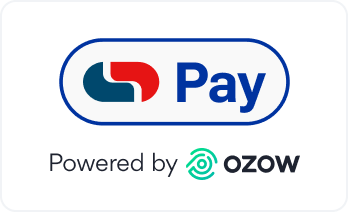
The full-width row carries the logo, the words "Powered by" and the Ozow logo on a white card, with an empty selection circle on the left. It fits a payment method list where the customer picks one of several.

The compact button stacks the same elements into a bordered block, for a checkout that shows each payment method as its own button rather than as a row.
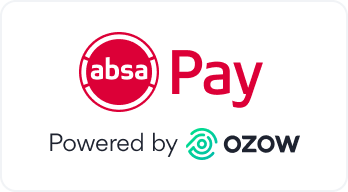
The row and the button are both drawn as white cards, for a light checkout. On a dark background, use the logo and set the rest of the button in your own colours, following the requirements below.
The Nedbank Direct EFT artwork carries the Nedbank mark without the words "Direct EFTEFT A transfer between two bank accounts. Used here for the standard kind, which takes one to two business days, as against Real-Time Clearing, which moves the funds immediately. A payout or refund is one or the other, and which you choose is the difference between a customer waiting minutes and waiting days.". Label the button yourself if your customers need to tell it apart from another Nedbank method.
"Pay via Ozow" rows
Where Ozow is one option among several in your checkout, next to a card form or another provider, use a combined row instead of a button per method. It names Ozow once and shows the methods behind it, so a customer picking it knows what they will be offered next.
Pick the row matching the methods enabled on your account. Showing a method you don't have gets a customer to a screen where they can't use it.
| Methods shown | Size | File |
|---|---|---|
| Pay by bankPay by Bank The payer authorises the payment inside their own banking app or online banking, and the funds move from their bank account. No card is involved and no card details are entered. | 1324x160 | PNG |
| Card, Pay by bank | 1324x160 | PNG |
| Card, PayShapPayShap South Africa's rapid payments service, run by the banks. Low-value payments clear in seconds, and the recipient can be identified by a ShapID instead of by an account number.payshap.co.za, Pay by bank | 1324x160 | PNG |
| Card, PayShap, Pay by bank, Voucher | 1324x160 | PNG |
| Card, PayShap, Capitec Pay, Pay by bank, Voucher | 1324x160 | PNG |
| Icons only, no method names | 535x160 | PNG |




Each carries "Pay via Ozow", the Ozow logo, a selection circle and a labelled badge per method:

The icons-only row drops the method names for a narrow checkout. Use it where the row would otherwise wrap, and only where the icons are recognisable at your size.

These are for a payment method list, not a standalone button. Send no institutionId behind
one and the customer chooses on the Ozow payment page, which is what the row promises them.
Building your own standalone button
The supplied artwork already meets every requirement below. Build your own only where none of the three shapes fits your checkout.
Your design must include:
- The payment method logo, used as supplied.
- The words "Powered by".
- The Ozow logo.
- The logo version that suits your background colour.
Contact your Ozow account manager for the logo files if you need them outside the supplied artwork.
Using them
- Use the official logo for each payment method.
- Don't recolour, stretch, rotate or add effects to the artwork.
- Keep the payment method logo, "Powered by" and the Ozow logo together. Removing one of the three leaves a button you can't ship.
- Keep enough clearClearing Moving funds between two banks so the recipient can rely on them. It is a separate step from a payment being approved: a payment can succeed and the money still be in transit. Real-Time Clearing is the immediate version. space around each logo that it reads cleanly at your button size.
- Only show payment methods that are actually enabled on your account. A button for a method you don't have will fail at checkout.
Apple Pay and Google Pay follow Apple's and Google's brand guidelines
Ozow's rules above don't apply to those two buttons. If you're rendering them with the Embedded Wallet, follow Apple's and Google's published requirements for button styling, sizing and placement. Ozow can't grant an exception to them.
Last updated