
Prerequisites and onboarding
What to have in place before you write any code: a merchant account, Dashboard access, your credentials, and payout eligibility if you need it.
On this page7 sections
Build with AI 8 packages
A build package is every page for one task, with the API operations they use. Copy the prompt into a coding assistant, or hand it the package itself: slim links to each page, full inlines all of them in one document.
- Take a paymentEverything needed to take a payment end to end with One API, from credentials through the hosted page to the webhook that confirms it, and the test cases that prove each outcome before you go live.
- Embed checkout in your own pageEverything needed to keep the customer on your site while they pay, as an iframe or a modal, with the notification that actually confirms the payment.
- Take a recurring paymentEverything needed to collect from a customer on a schedule with One API, from the consent the customer gives once through to each collection and the webhook that reports it.
- Migrate a payin from the Payments API to One APIEverything needed to move an existing Hosted Checkout payin onto One API, with the deprecated guide and its One API counterpart side by side.
Before you start integrating Ozow, make sure you have everything in place. This page covers what you need before writing a single line of code.
1. Register as an Ozow merchant
You need an active Ozow merchant account before you can integrate. If you don't have one yet, join our merchant family or speak to your account manager to get set up. If you signed up through a commercial manager or already have an account, you can skip this step and log in to the Ozow Dashboard directly.
If you need assistance with your account, contact support@ozow.com or reach out to your account manager.
2. Access the Ozow Dashboard
Once your merchant account is active, you can log in to your Ozow Dashboard. The Dashboard is where you'll find everything you need to begin your integration.
3. Retrieve your credentials
Which credentials you need depends on the API you are integrating against. Collect the row for yours and ignore the rest.
| One API | Payments API | PayoutsPayout Money sent from a merchant to a bank account. Unlike a refund, a payout is not tied to a payment anyone made you, so you can pay anyone with a bank account. Payouts draw on your float rather than on your incoming payments, and they are not self-service: they need approval from Ozow and testing in staging first. API | |
|---|---|---|---|
| Client ID and Client Secret | Yes | No | No |
| API key | No | Yes | Yes, a different key |
| Private key | No | Yes, to sign the hash | Yes, to sign the hash |
| Where to find them | One API Clients | Merchant Details and Site | Issued once payouts are approved |
On One API, the Client ID and Client Secret are all you need. You exchange them for an access token. There is no API key to send and no hash to compute.
On the Payments API and the Payouts API you need both keys, and they do different things. The
API key goes in the ApiKey header. The private key is never sent: you use it to compute the
hashCheck field on the request, and again to verify the hash on a notification.
The Payouts API takes its own API key, not the one the Payments API takes. Sending the Payments API key to a payout endpoint is rejected.
Your site codeSite code The unique code for a site registered under a merchant. A site is a place to transact: a website, or a branch of a store. A merchant can have several, and each transaction names the one it belongs to, so sending the wrong code files the payment against the wrong place. identifies which of your sites a request belongs to and is in the Site section of the Dashboard. Every path needs one. It is not a secret.
One API clients and payout API keys are scoped per site or per merchant.
A key issued for one site does not work for another, so check which you have been given before you assume it covers your whole account.
Security note
Keep your credentials secure at all times. Never expose them in client-side code, public repositories, or logs. Ozow does not publish credentials publicly and will never ask you to share them in an unsecured channel.
4. Understand your portal setup
When you log in to the Ozow Portal, you'll see your merchant account. Within your account, you can have one or more sites; each representing a separate website, merchant, or integration point.
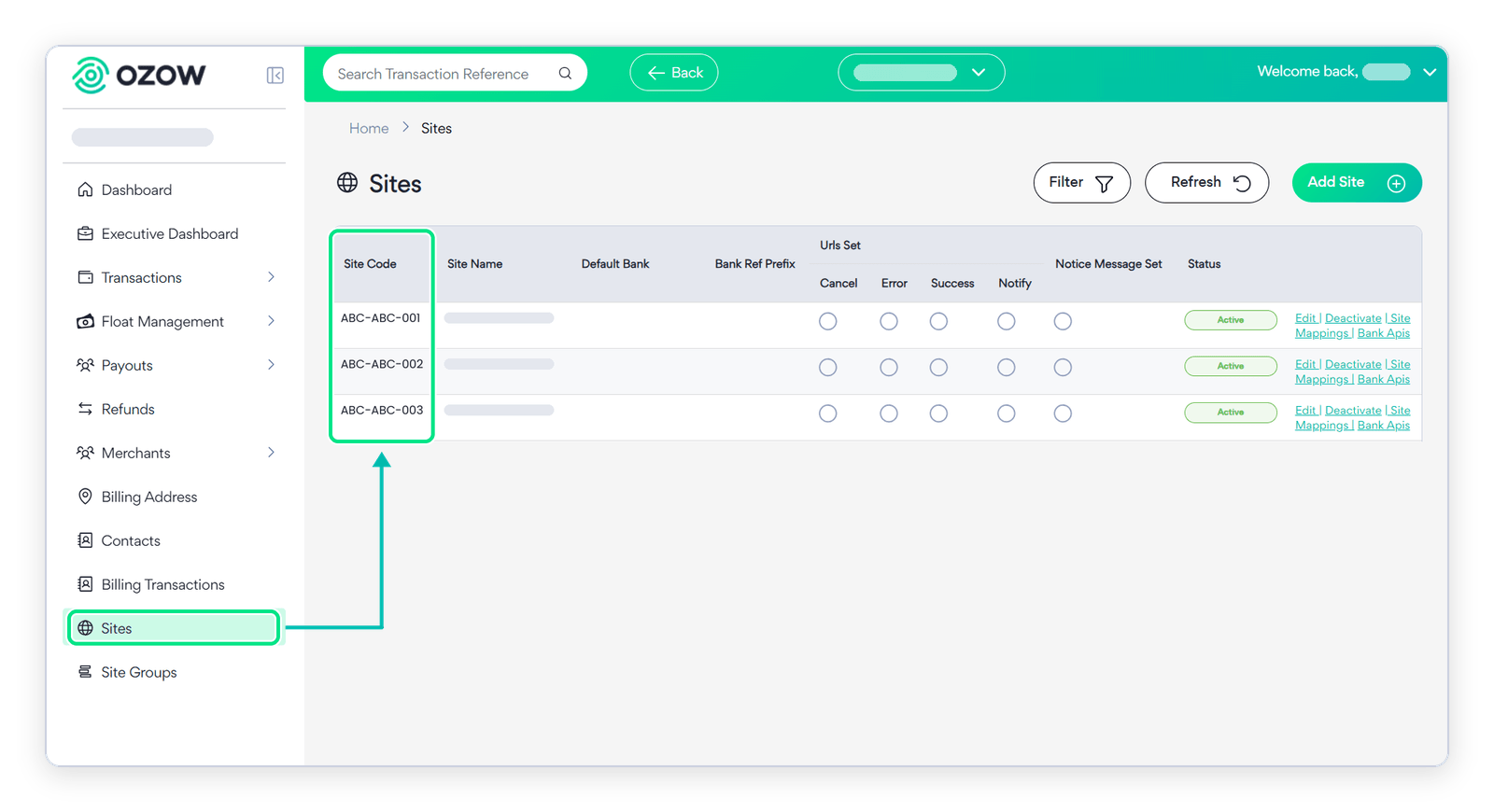
Each site has its own unique site code, and your site code and API credentials work together to identify which site a payment belongs to. Payment requests and transactions are always tied to a specific site, so it's important to use the correct site code for the integration you're building.
Find your site code
- Log in to your Ozow Portal at dash.ozow.com.
- In the left-hand menu, go to Sites.
- Your site code is listed next to each site on your account.
Your site code follows the format XXX-XXX-XXX.
5. Integrating payouts? Check your eligibility first
Note
PayinPayin A payment made by a consumer to a merchant. The direction most of this site is about: money coming in. Its counterpart is a payout, which sends money out and is not tied to any payment anyone made you. credentials are issued automatically as part of standard merchant onboarding.
If you intend to integrate payouts, you must be approved by Ozow's onboarding team before you can begin. Payout credentials are not issued until this approval is in place; you will not be able to start a payout integration without them.
Contact sales@ozow.com or your account manager to request payout eligibility.
6. Choose your integration path
Once your credentials are in place, you're ready to choose how you'll integrate. Head to how to integrate with Ozow to understand your options and choose the right path for your use case.
If you're new to Ozow and want to get to your first payment as quickly as possible, go straight to the quick start guide.
Last updated