
Standalone buttons Deprecated
Show a specific Ozow payment method as its own button at checkout so customers can go straight to the way they want to pay.
On this page8 sections
Deprecated integration
This page covers the deprecated Payments API. For new integrations, use Standalone buttons on OneAPI.
A standalone button shows one Ozow payment method as its own option on your checkout page, for example Capitec PayCapitec Pay Capitec's own payment method. The payer gives a cellphone, account or ID number rather than card details, and approves the payment in the Capitec app, so no card number and no banking login is ever entered at checkout. It gets its own button rather than sitting inside the bank list, and it requires Customer Identity Verification.Capitec or card. Customers don't land on a general payment page and choose from there. They click the method they recognise and go straight into that payment flow.
Customers who can't see how they can pay at checkout hesitate or leave. Most customers look for logos they know, and a standalone button puts that logo in front of them.
Why use standalone buttons
Instant recognition. A familiar logo shows the customer straight away that their preferred way to pay is accepted.
Brand familiarity builds trust. A payment brand customers know reassures them when they decide whether to pay.
Customers expect to see their method. If customers don't see their payment method, they assume it isn't available. A standalone button removes that doubt.
One less step. The customer skips the method-selection screen, so there's less friction between payment intent and a completed payment.
What it looks like
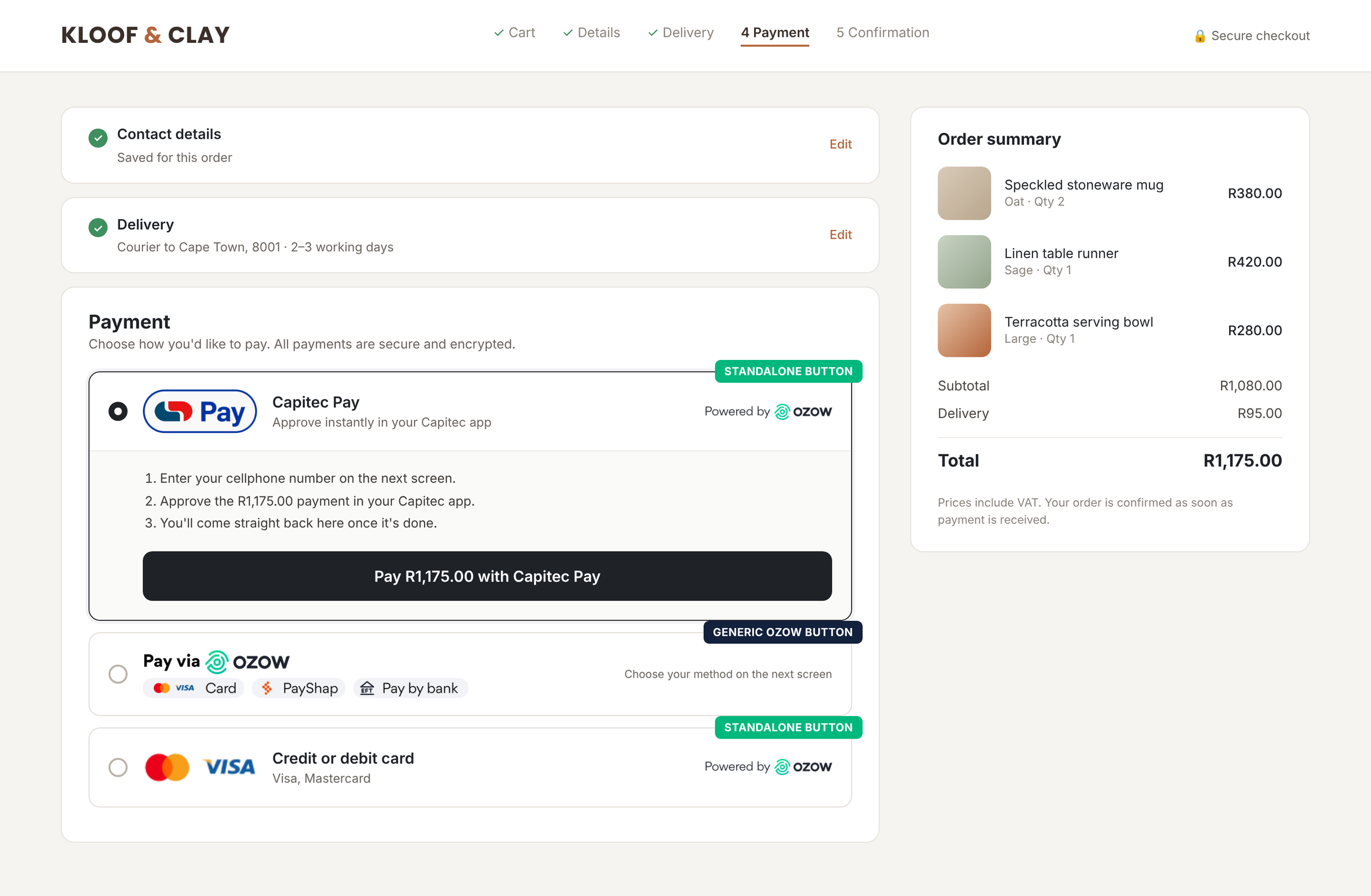
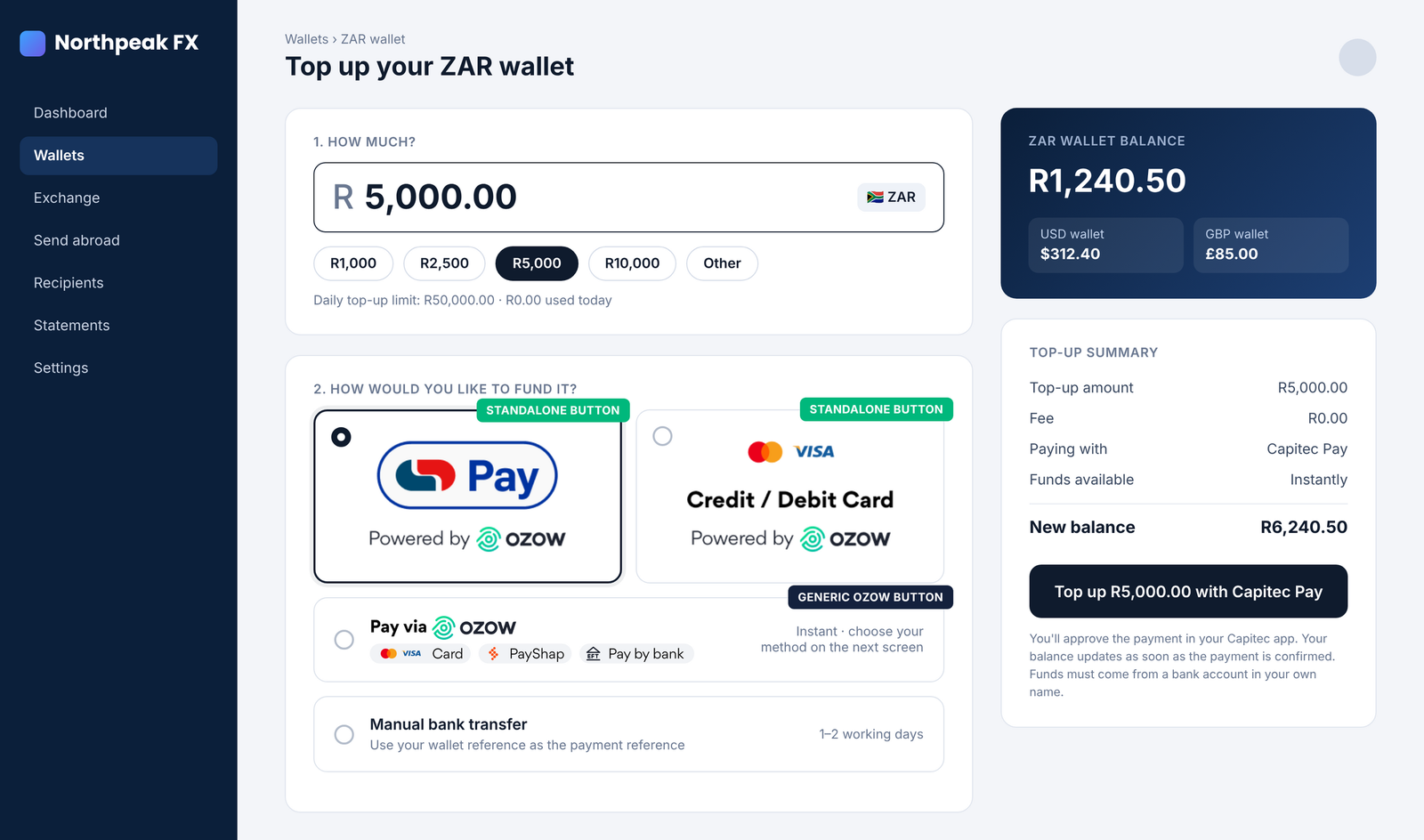
Standalone buttons work anywhere a customer chooses how to pay. Show them alongside the general Ozow button, not instead of it, so customers can still reach every other method enabled on your account.
These examples are illustrations, not real merchants. Always use the official button artwork from Logos and branding.
E-commerce checkout example
Wallet top-up example
What the customer sees
A standalone button takes the customer straight to the payment method they chose at checkout. They skip the Ozow payment method list and the bank list, so there are fewer screens between checkout and a completed payment.
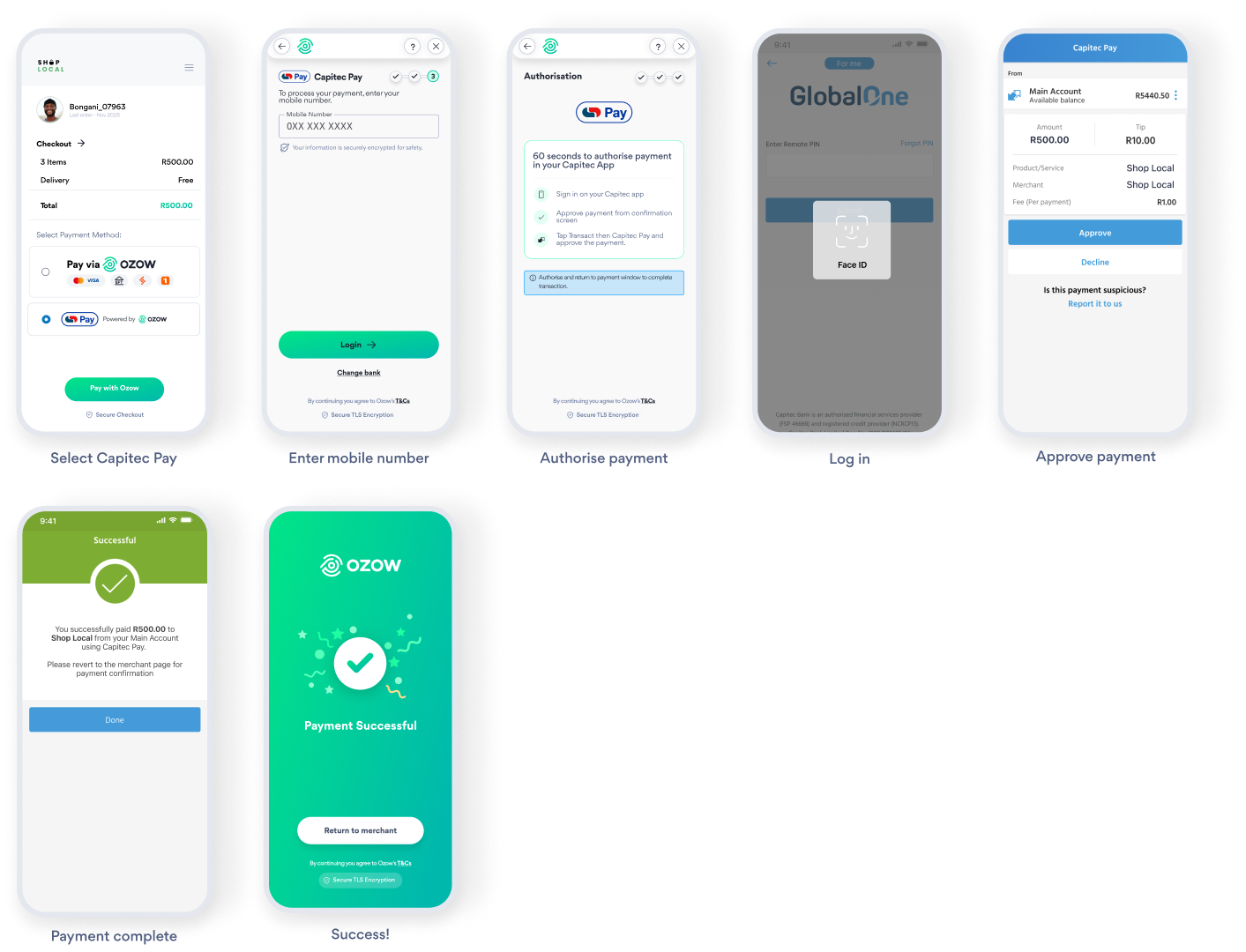
The examples below compare the same R500 Capitec Pay payment made two ways: through a standalone Capitec Pay button, and through the standard Pay via Ozow option.
Standalone Capitec Pay journey
- Select Capitec Pay at checkout
- Skip straight to the Capitec Pay login page
- Enter their mobile number
- Authorise in the Capitec app.
- Payment Successful
Pay via Ozow journey
- Select Pay via Ozow at checkout
- Choose a payment method from the full list of methods
- Choose Pay by BankPay by Bank The payer authorises the payment inside their own banking app or online banking, and the funds move from their bank account. No card is involved and no card details are entered. to see the full list of banks
- Choose Capitec Pay from the bank list
- Enter their mobile number
- Authorise in the Capitec app.
- Payment Successful
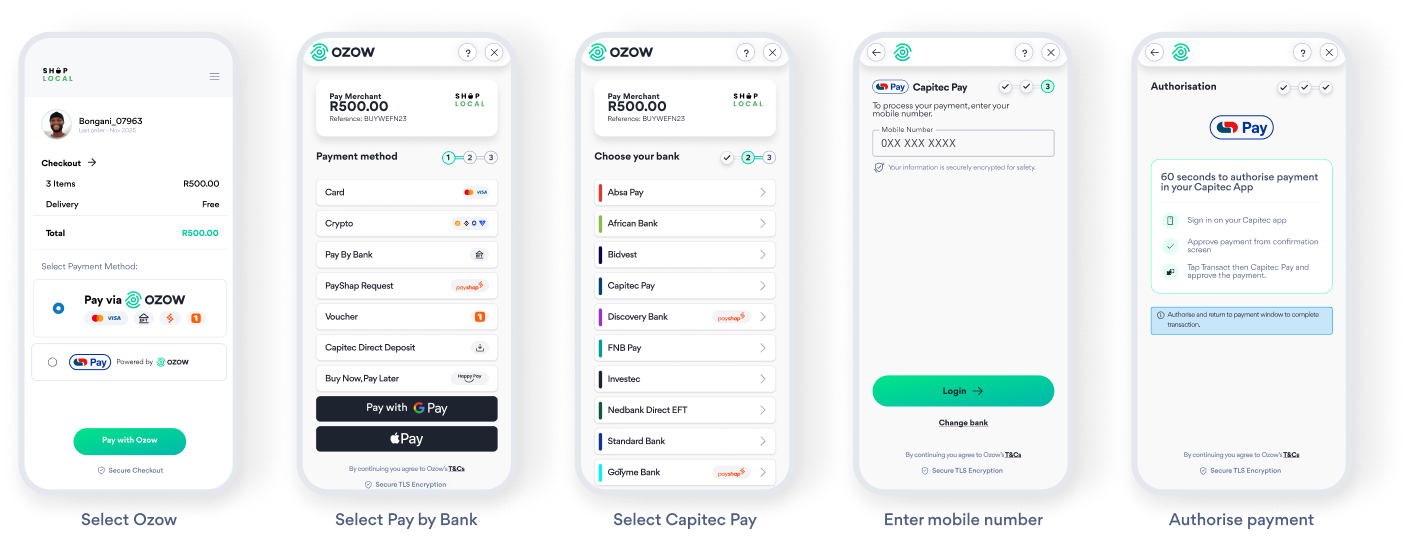
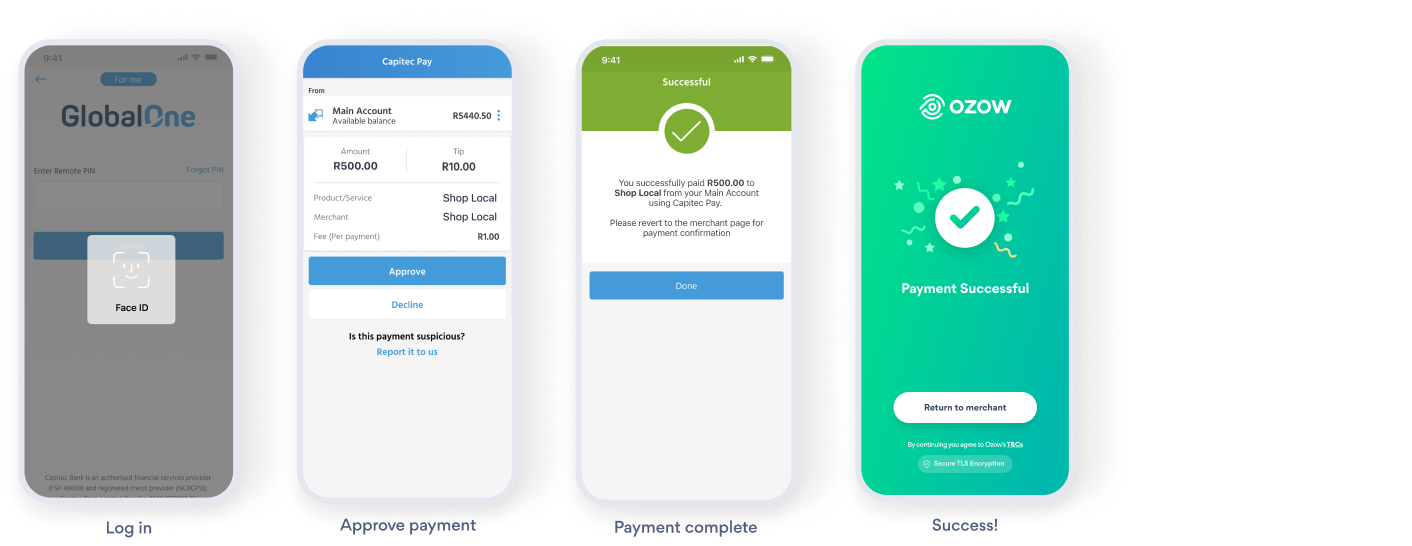
Steps 2, 3 and 4 of the standard flow are the screens a standalone button removes. If you already know which method your customer wants, a standalone button gets them to the bank's authorisation screen faster.
The customer still authorises and approves every payment in their own banking app. A standalone button changes where the journey starts, not how the payment is secured.
Integration guide
Add selectedBankId to your payment request. When the selectedBankId is valid, Ozow sends the
customer directly to that payment method.
Each payment method's selectedBankId is listed on Payment method
identifiers. For the general Ozow button, leave out
selectedBankId. The customer then chooses from all your enabled methods on the Ozow payment
page.
Post the request to https://api.ozow.com/postpaymentrequest (staging:
https://stagingapi.ozow.com/postpaymentrequest).
{
  "siteCode": "YOUR_SITE_CODE",
  "countryCode": "ZA",
  "currencyCode": "ZAR",
  "amount": "100.00",
  "transactionReference": "ORDER-001",
  "bankReference": "ABC123",
  "cancelUrl": "https://yourstore.com/cancel",
  "errorUrl": "https://yourstore.com/error",
  "successUrl": "https://yourstore.com/success",
  "notifyUrl": "https://yourstore.com/notify",
  "isTest": false,
  "selectedBankId": "YOUR_BANK_ID",
  "hashCheck": "YOUR_GENERATED_HASH"
}
Include it in the hash
selectedBankId is field 18 in the hash concatenation order. Add it directly after isTest (field
17) in the concatenated string. Only include it when you send it in the request. If it's missing
from the hash or in the wrong position, the hash check fails.
Important
Only show a standalone button after Ozow has confirmed your account is enabled for that payment method. A button for a method you don't have sends customers to a screen where they can't pay.
Apple Pay and Google Pay can't be standalone buttons.
To offer them, use a card standalone button. It opens a payment screen where customers can pay by card, Apple Pay or Google Pay.
Next steps
- Confirm your enabled methods. Check your payment flow to see which payment methods are
enabled on your account. 2. Get the official artwork. Download the button for each method from
Logos and branding. Don't recolour, stretch or rotate
it. 3. Add the buttons and pass the identifier. Place each standalone button next to the general
Ozow button and send the matching
selectedBankIdin the payment request. 4. Test before going live. Confirm each button opens the right method. 5. Go live.
Last updated