
Card
Your customer pays with a Visa or Mastercard debit or credit card.
On this page10 sections
Card lets your customers pay securely with a Visa or Mastercard debit or credit card. It's a fast, reliable and familiar way to pay at checkout, on the Ozow payment page or embedded in your own checkout.
Card is also the foundation for Apple Pay and Google Pay. Card has to be enabled before either wallet can be, and each wallet is enabled separately. Samsung Pay isn't available yet.
At a glance
| Card feature | What you need to know |
|---|---|
| Enabled by default | No. Speak to your account manager. Ozow confirms your business type is supported for card |
| Customer needs | A Visa or Mastercard debit or credit card |
| Customer enters | Card details: name on card, card number, expiry date and CVV |
| How the customer approves | 3D Secure, typically a one-time PIN (OTP) or an in-app approval from their bank |
| Chargebacks | Yes. Customers can disputeDispute A customer challenging a completed card payment through their own bank. A successful dispute becomes a chargeback and reverses the funds. Distinct from a refund, which you initiate and control. a card payment through their bank |
| Refunds | Yes, initiated by you from the Ozow Portal. See Refunds |
| Transaction limits | Set by the card issuer. |
| SettlementSettlement Ozow paying the money you have collected into your bank account. Payins arrive at Ozow first and are settled to you on a schedule, so what a customer paid you today and what has been settled to you today are different amounts. | Typically once a week after the transaction is processed |
| Digital wallets | Apple Pay and Google Pay, enabled separately once card is on |
How your customer pays
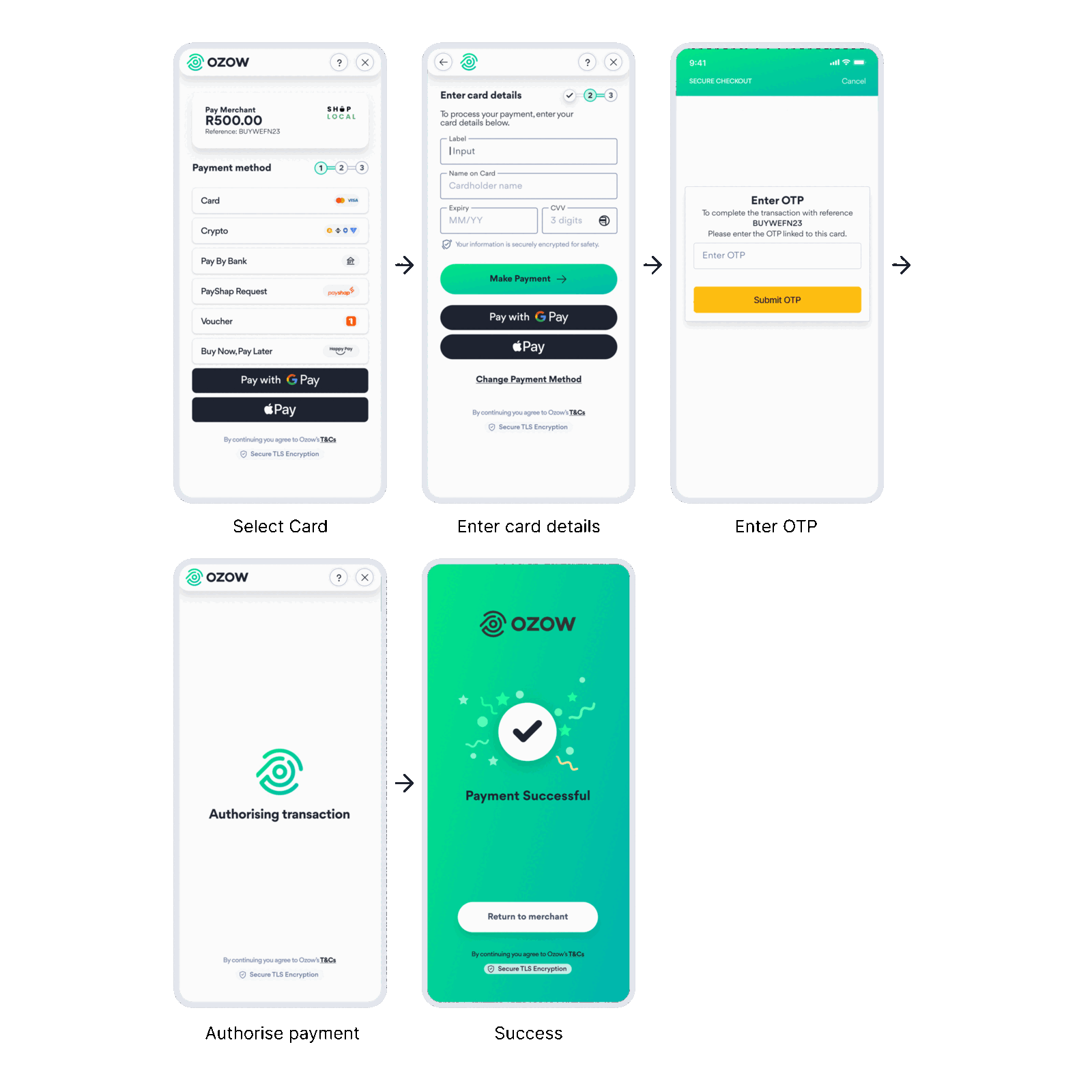
- Your customer selects Card at checkout.
- They enter their card details and tap Make Payment. If wallets are enabled on your account and they're on a supported device, Apple Pay and Google Pay buttons appear here too.
- Their bank asks them to verify the payment with 3D Secure, typically by entering a one-time PIN.
- Ozow authorises the transaction and shows a success screen.
- Your customer taps Return to merchant to go back to your site.
Digital wallets
Apple Pay and Google Pay let customers pay with a card already saved on their device, confirmed with biometrics or their device passcode. They're card payments underneath, so everything on this page applies to them too.
| Wallet | Customer device | Page |
|---|---|---|
| Apple Pay | iPhone, iPad or Mac | Apple Pay |
| Google Pay | Android device or a Google account | Google Pay |
Card must be enabled first. Each wallet is then enabled as its own step.
When to use card
Card suits you if:
- Your customers expect to pay by card, especially for online shopping.
- You want to offer Apple Pay and Google Pay, which both need card.
- You want a familiar, widely accepted option alongside Ozow's bank-based payment methods.
Consider offering it alongside other methods if:
- You'd rather avoid chargebacks. Confirmed Pay by Bank payments are irrevocable.
- Many of your customers don't have a card. See Pay by Bank and Voucher Redemption.
Enabling card
Card isn't a self-service opt in. Speak to your account manager to get started. As part of enablement, Ozow confirms that your business type is supported for card.
If you're already integrated with Ozow, you don't need to build anything new. Card appears on your existing integration once it's enabled on your account.
Apple Pay and Google Pay are enabled separately. Card is a prerequisite: card is enabled first, then each wallet is enabled as its own step.
Integrating card
Card works with every Ozow integration method.
If you already have an Ozow integration, there's nothing to build. Once card is enabled, it appears on the Ozow payment page automatically, however your customers reach that page:
- Hosted Checkout: send your customer to the Ozow payment page using an API-based integration.
- Embedded Checkout: show the Ozow payment page inside your site, as an iframe or a modal.
- No code payment requests
- Plugins and platforms
Standalone bank buttons. To send customers straight to card and skip the payment method selection
screen, pass card's institutionId. Where wallets are enabled, Apple Pay and Google Pay buttons
appear on that screen too. See Payment Method IDs
and Standalone payment buttons.
Card icons and logos for your own checkout buttons are in Brand assets.
Confirming payment. Only fulfil an order once you've received a confirmed successful status from Ozow. See Statuses.
Testing
We recommend testing with small live payments in production. Production payments settle back to you as normal, so it's safe to test this way. If you need staging credentials, contact Ozow support or your account manager.
Refunds, chargebacks, settlement and reconciliation
- Refunds: you initiate refunds from the Ozow Portal: find the transaction and select the refund option. See Refunds.
- Chargebacks: a customer can dispute a card payment through their bank. See Things to know.
- Settlement: Card payments typically settle once a week after the transaction is processed. See Settlements.
- Ozow Portal: view your transaction history in the Ozow Portal, where you can filter and download reports.
Things to know
3D Secure is applied to card payments. It adds a verification step for the customer and helps prevent unauthorised transactions. In many cases, liability for fraudulent chargebacks shifts from you to the card issuer.
Card payments can be charged back. This is the main difference between card and Ozow's bank-based payment methods, where a confirmed payment is irrevocable. A chargebackChargeback A completed card payment reversed by the customer's bank after a successful dispute. The funds come back out, and the process runs between the banks rather than through Ozow, so it is not something you can approve or refuse. Your transaction records and delivery confirmations are what it is decided on. is a transaction reversal initiated by the cardholder's bank when the customer disputes a purchase. While the dispute is investigated, the amount is deducted from your account and returned to the customer, either temporarily or permanently. You can respond with evidence to challenge the claim, so keep your transaction records and delivery confirmations.
A refund is not a chargeback. A refund is something you initiate. A chargeback is raised by the customer through their bank and follows a dispute process. If you receive a chargeback notification, contact Ozow support.
Declined payments. If a payment is declined, check the error code. Common reasons include insufficient funds or incorrect card details. See One API error codes or contact Ozow support.
If you integrated through the Payments API, see Payments API error codes instead.
Security. Card payments are protected by fraud detection, encryption and PCI DSSPCI DSS The security standard that applies to anyone who stores, processes or transmits card data. Its reach is the reason most integrations avoid touching card numbers at all.PCI Security Standards Council compliance.
FAQs
How do I start accepting card payments? Speak to your account manager. Ozow confirms your business type is supported for card, then enables it on your account. If you're already integrated, there's nothing new to build.
Which cards can I accept? Visa and Mastercard debit and credit cards.
Are there transaction limits? Limits are set by the customer's card issuer. Ozow sets no limit of its own.
Are there setup fees? No. Transaction fees and monthly service fees may apply.
How long does settlement take? Card payments typically settle once a week after the transaction is processed.
What should I do if a payment is declined? Check the error code. Common reasons include insufficient funds or incorrect card details. Contact Ozow support for further help.
How do I refund a card payment? In the Ozow Portal, find the transaction and select the refund option.
What security features protect card payments? Fraud detection, encryption, 3D Secure and PCI DSS compliance.
What are the benefits of 3D Secure? It helps prevent unauthorised transactions, can shift liability for fraudulent chargebacks from you to the card issuer, and gives customers confidence that their payment is protected.
What is a chargeback? A transaction reversal initiated by the cardholder's bank when a customer disputes a purchase. The amount is deducted from your account while the dispute is investigated, and you can respond with evidence.
Where can I see my transaction history? In the Ozow Portal, where you can filter and download reports.
Last updated