
Apple Pay
Your customer pays with a card saved in Apple Wallet, confirmed with Face ID, Touch ID or their device passcode.
On this page9 sections
Apple Pay lets your customers pay with a debit or credit card they've already saved in Apple Wallet on their iPhone, iPad or Mac, confirmed with Face ID, Touch ID or their device passcode. There's no card number to type, no CVV to find and no form to fill in, so customers can complete a purchase in just a few taps.
Apple Pay is a card payment underneath, so everything on the Card page applies to it too.
At a glance
| Apple Pay feature | What you need to know |
|---|---|
| Enabled by default | No. Card must be enabled first, then Apple Pay is enabled separately. Speak to your account manager |
| Customer needs | A supported Apple device with a Visa or Mastercard card saved in Apple Wallet |
| How the customer approves | Face ID, Touch ID or device passcode |
| Chargebacks | Yes, the same as card |
| Refunds | Yes, initiated by you from the Ozow Portal. See Refunds |
| Transaction limits | Set by the card issuer. |
| SettlementSettlement Ozow paying the money you have collected into your bank account. Payins arrive at Ozow first and are settled to you on a schedule, so what a customer paid you today and what has been settled to you today are different amounts. | The same as card: typically once a week after the transaction is processed |
institution |
None of its own. Use card's |
How your customer pays
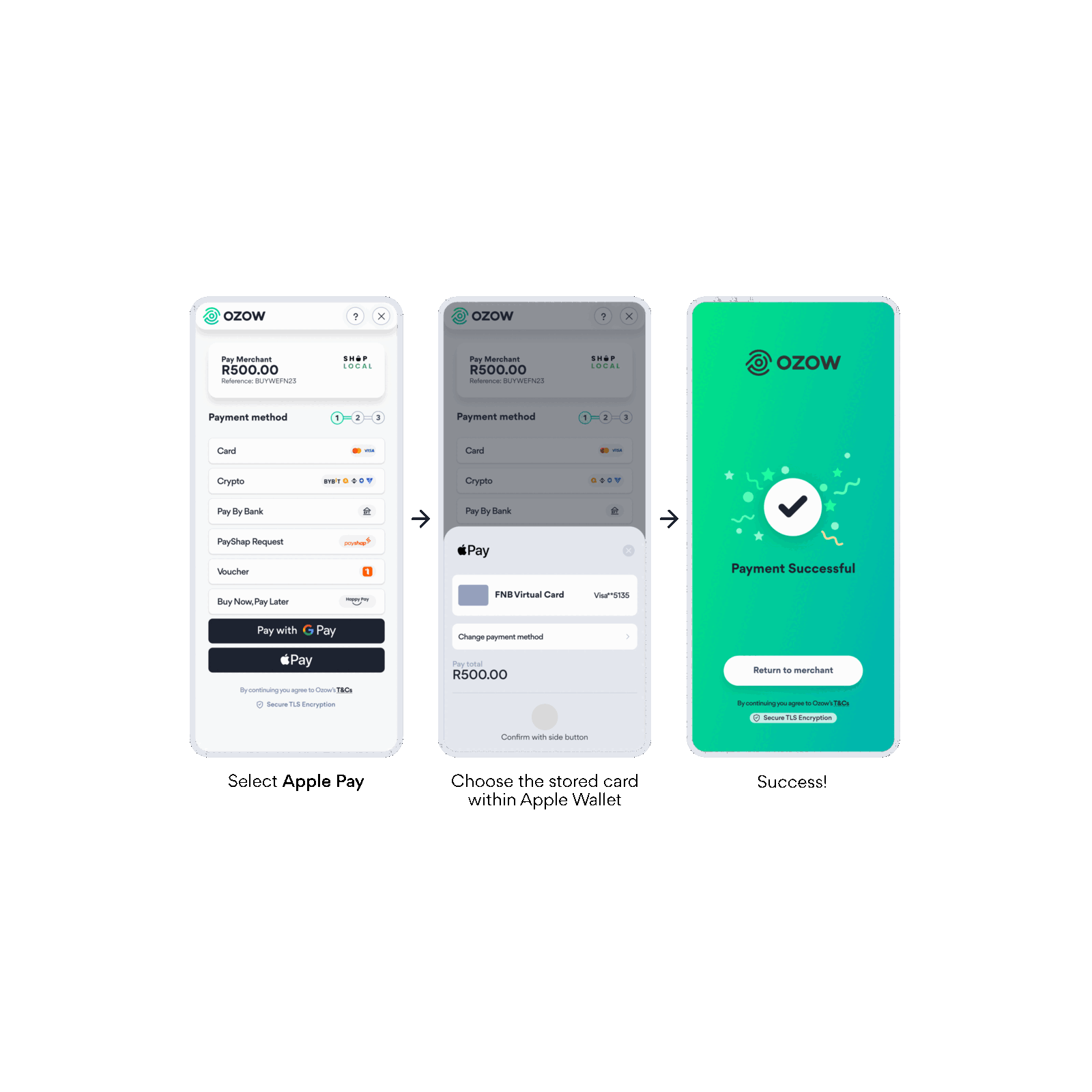
- Your customer selects Apple Pay at checkout. The button appears only on supported devices and browsers.
- Apple Pay opens and shows the card stored in their Apple Wallet. They can change to another saved card if they want.
- They check the amount and confirm, for example with the side button and Face ID.
- Ozow shows a success screen, and your customer taps Return to merchant to go back to your site.
When to use Apple Pay
Apple Pay suits you if:
- Many of your customers shop on iPhone, iPad or Mac.
- You want a faster mobile checkout that can improve conversion.
- You want the extra security of tokenised, biometric payments.
Apple Pay only appears for customers on supported Apple devices, so offer it alongside Card and Google Pay.
Enabling Apple Pay
Card has to be enabled first. Apple Pay sits on top of card, so you can't have it without card. If card isn't enabled on your account yet, start there. See Card.
Apple Pay is then enabled separately. It isn't switched on automatically with card. Speak to your account manager to have it added to your account. You don't need a new acquiring agreement: Apple Pay runs on the existing card schemes.
Once both are enabled, the Apple Pay button appears on the Ozow payment page for customers whose devices support it. You don't need to change your integration.
Integrating Apple Pay
On the Ozow payment page, there's nothing to build. Once card and Apple Pay are enabled, the button appears automatically wherever your customers reach the Ozow payment page:
- Hosted Checkout: send your customer to the Ozow payment page using an API-based integration.
- Embedded Checkout: show the Ozow payment page inside your site, as an iframe or a modal.
- No code payment requests
- Plugins and platforms
Not yet available
Apple Pay as a button on your own checkout page. Use one of the integrations above, where Apple Pay appears on the Ozow payment page alongside card entry.
Standalone button. There's no separate institutionId for Apple Pay. If you're building a
standalone button, use card's. The Apple Pay button appears on the card payment screen alongside
card entry. See Standalone payment
buttons.
Button artwork. Apple Pay button artwork must come from Apple directly, under Apple's brand guidelines. Icons for Ozow's other payment methods are in Brand assets.
Confirming payment. Only fulfil an order once you've received a confirmed successful status from Ozow. See Statuses.
Testing
We recommend testing with small live payments in production, using a supported Apple device with a card in Apple Wallet. Production payments settle back to you as normal, so it's safe to test this way. If you need staging credentials, contact Ozow support or your account manager.
Refunds, chargebacks, settlement and reconciliation
Apple Pay payments work the same way as card payments.
- Refunds: you initiate refunds from the Ozow Portal. See Refunds.
- Chargebacks: a customer can disputeDispute A customer challenging a completed card payment through their own bank. A successful dispute becomes a chargeback and reverses the funds. Distinct from a refund, which you initiate and control. an Apple Pay payment through their bank, the same as card. See Card.
- Settlement: typically once a week after the transaction is processed, the same as card. See Settlements.
- Reconciliation: Apple Pay transactions settle like standard card payments, typically with a digital wallet indicator in reporting.
Things to know
Apple sets its own button rules. How the Apple Pay button looks, how big it is and where it sits are governed by Apple's published brand guidelines, not by Ozow. Follow Apple's guidelines. Ozow can't grant an exception.
There's no domain verification for you to do. Apple Pay runs on the Ozow payment page, so there's nothing on your domain to verify.
Outside Safari, the button hands off to a device. In Safari on macOS or iOS, the native Apple Pay sheet opens. In Chrome, Edge and Firefox, including on Windows, the button opens a QR code sheet and your customer completes the payment on an iOS 18 or later device.
There's no native app SDK. For payments in a native iOS or Android app, use Hosted Checkout or a web view.
Card details stay protected. Apple Pay uses tokenisation: the real card number is replaced with a secure network token, and each transaction uses a dynamic cryptogram. You never receive raw card details, which reduces your PCI scope, though standard PCI responsibilities still apply.
FAQs
What is a digital wallet? A digital wallet lets customers store card details securely on their device and pay using biometric authentication instead of entering card details manually. Apple Pay and Google Pay are examples.
What are the benefits of accepting Apple Pay? Faster checkout, improved conversion, reduced fraud risk, a better mobile experience and secure tokenised payments.
Do I need a new acquiring agreement? No. Apple Pay runs on the existing card schemes using your current card setup with Ozow.
How are Apple Pay transactions processed? The customer authenticates, Apple Pay generates a token, the transaction is sent through the card network, and the authorisation comes back like a standard card payment.
What is tokenisation? Tokenisation replaces the real card number with a secure network token, reducing exposure to sensitive card data.
Is Apple Pay PCI compliant? Yes. Apple Pay reduces your PCI scope because you don't receive raw card details, though standard PCI responsibilities still apply.
Is Apple Pay more secure than card? Yes. It uses biometrics, tokenisation, encryption and a dynamic cryptogram for each transaction.
Will settlement or reconciliation change? No. Apple Pay transactions settle like standard card payments, typically with a digital wallet indicator in reporting.
Can Apple Pay improve authorisation rates? Often, yes, because the card has been verified when it was added to Apple Wallet and there are fewer fraud risk signals.
Which devices support Apple Pay? iPhone, iPad and Mac. In Safari, the Apple Pay sheet opens directly. In other browsers, the customer completes the payment on their iPhone by scanning a QR code.
Last updated